Fixing LCP on Shopify is one of the highest-impact things is one of the most important numbers you’re probably ignoring. It’s the main reason your store feels slow, ranks lower on Google, and loses customers before they ever see your products.
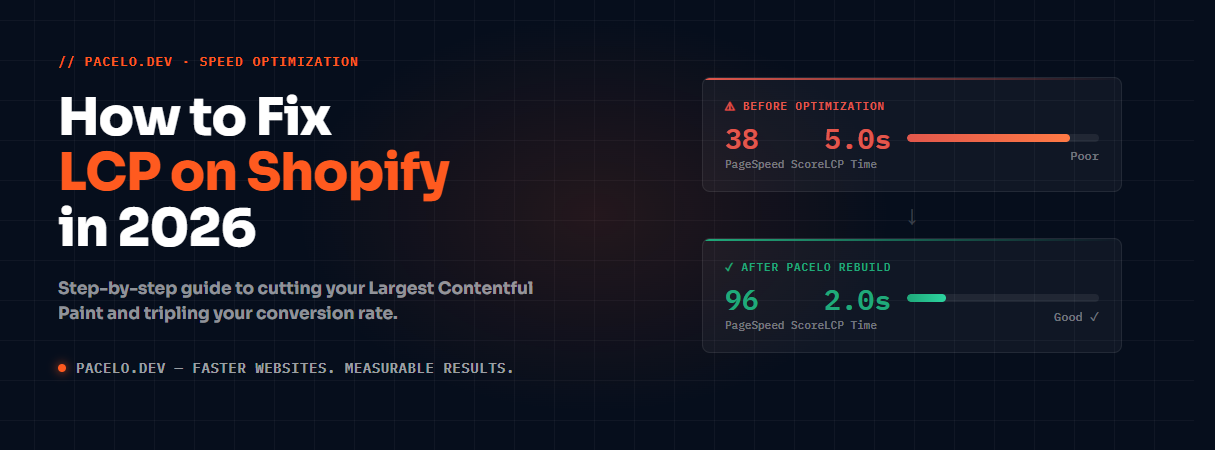
In this guide I’ll show you exactly how to fix LCP on Shopify — the same process I used to take a haircare brand’s store from 5.0s LCP down to 2.0s, and watch their conversion rate triple in the first 30 days.
No fluff. Just what actually works.
What Is LCP and Why Does It Matter for Shopify?
LCP stands for Largest Contentful Paint. It measures how long it takes for the biggest visible element on your page — usually your hero image or headline — to fully load on screen.
Google considers anything under 2.5 seconds “Good.” Between 2.5s and 4.0s is “Needs Improvement.” Above 4.0s is “Poor.”
Most Shopify stores I audit are sitting between 4.0s and 8.0s. That means:
- Google is actively ranking your competitors above you
- Visitors are leaving before your page even loads
- Every dollar you spend on ads is bringing people to a page that drives them away
The good news: LCP is fixable. And fixing it has a direct, measurable impact on sales.
What Causes Slow LCP on Shopify?
Before fixing anything, you need to know what’s causing the problem. The most common LCP killers on Shopify stores are:
1. Unoptimized Hero Images
Your hero banner is usually the largest element on the page — which makes it the LCP element. If it’s a 3MB PNG file, your LCP will be slow no matter what else you fix.
2. Render-Blocking JavaScript and CSS
Shopify themes load a lot of JavaScript by default. If that JS runs before your page paints, your LCP suffers. Third-party apps (review widgets, chat plugins, upsell apps) are especially guilty here.
3. No Image Preloading
The browser doesn’t know your hero image is important until it finds it in the HTML. By then it’s already late. Adding a preload hint tells the browser to fetch it immediately.
4. Too Many Shopify Apps
Every app you install adds JavaScript to your storefront. Ten apps can add 2–4 seconds of load time. Most store owners have 15–30 apps installed.
5. Non-Optimized Fonts
Loading Google Fonts or custom fonts without proper font-display settings causes text to appear late, which can push your LCP score down.
6. Slow Server Response Time (TTFB)
If Shopify’s servers are taking over 600ms to respond, your LCP starts late before any resources even load.
How to Check Your Current LCP Score
Before fixing anything, measure it.
- Go to PageSpeed Insights
- Paste your Shopify store URL
- Run the test on Mobile (this is what Google uses for ranking)
- Look at the “Largest Contentful Paint” metric under Core Web Vitals
Also check which element IS your LCP — PageSpeed Insights will show you. It’s usually your hero image, a large headline, or a banner above the fold.
Note the element and the time. That’s your starting point.
How to Fix LCP on Shopify — 7 Proven Steps
Step 1: Convert Your Hero Image to WebP and Compress It
If your LCP element is an image (which it usually is), this single step can cut your LCP by 30–50%.
What to do:
- Export your hero image at the actual display size — not 4000px wide if it only shows at 1400px
- Convert it to WebP format using Squoosh (free, no install needed)
- Aim for under 100KB for desktop hero images
- Upload the compressed WebP to Shopify
In your theme code, make sure the image tag includes fetchpriority high:
{{ section.settings.image | image_url: width: 1400, format: 'webp' | image_tag: loading: 'eager', fetchpriority: 'high' }}Step 2: Add a Preload Hint for Your Hero Image
This is the single highest-impact fix most Shopify developers miss. Add this in your theme’s <head> section inside theme.liquid:
<link rel="preload" as="image" href="{{ section.settings.image | image_url: width: 1400 }}" fetchpriority="high">This tells the browser to start downloading your hero image immediately — before it even finishes parsing the HTML. On slow connections this alone can shave 0.5–1.5 seconds off your LCP.
Step 3: Audit and Remove Unnecessary Shopify Apps
Go to Shopify Admin → Apps and ask yourself honestly: is this app actively making me money right now?
Apps that commonly hurt LCP the most:
- Live chat widgets (Tidio, Zendesk, Intercom)
- Review apps that load on every page
- Currency converters
- Popup and exit-intent tools
- Affiliate tracking scripts
For every app you remove, you eliminate its JavaScript from loading on every page. I’ve seen stores cut 2+ seconds from load time just by removing 5–8 unused apps.
Step 4: Defer Non-Critical JavaScript
Find any third-party scripts in your theme.liquid and add the defer attribute:
<!-- Before -->
<script src="https://some-app.com/widget.js"></script>

<!-- After -->
<script src="https://some-app.com/widget.js" defer></script>
Important: Only defer third-party app scripts — not your theme’s own critical scripts.
Step 5: Fix Font Loading
Add font-display: swap to prevent invisible text during load, and preconnect to Google Fonts:
<link rel="preconnect" href="https://fonts.googleapis.com">
<link rel="preconnect" href="https://fonts.gstatic.com" crossorigin>
And in your CSS:
@font-face {
  font-family: 'YourFont';
  font-display: swap;
  src: url('your-font.woff2') format('woff2');
}
Step 6: Use Shopify’s Lazy Loading Correctly
Lazy loading is good for images below the fold — but it’s terrible for your hero image. Make sure your hero image uses loading=”eager”:
{{ image | image_url: width: 1400 | image_tag: loading: 'eager' }}And images below the fold use loading=”lazy”:
{{ image | image_url: width: 800 | image_tag: loading: 'lazy' }}A surprisingly common mistake is themes that apply lazy loading to every image including the hero — which directly tanks LCP.
Step 7: Reduce Your Theme’s CSS Payload
Go to PageSpeed Insights → click “Reduce unused CSS” in the recommendations. Shopify themes ship with CSS for every possible section, even ones you’re not using.
Options to fix it:
- Switch to a leaner theme (Dawn is Shopify’s fastest free theme)
- Move critical CSS inline in <head> so it loads immediately
- Remove sections and blocks you don’t use from your theme
Real Results: What These Fixes Actually Deliver
On a recent Shopify rebuild for Radeant, a haircare ecommerce brand, applying these fixes delivered:
| Metric | Before | After |
|---|---|---|
| Largest Contentful Paint | 5.0s | 2.0s |
| PageSpeed Score | 38 | 96 |
| Core Web Vitals | Fail | Pass |
| Conversion Rate | 1.0× | 3.1× |
The conversion rate lift happened because the same traffic that was bouncing off a slow page was now staying, browsing, and buying. Speed is not a technical metric. It’s a revenue metric.
How Long Does It Take to Fix LCP on Shopify?
- Quick wins (image compression, preload hint, font fixes): 2–4 hours
- App audit and defer: half a day
- Theme-level fixes (CSS, JS architecture): 1–3 days
- Full rebuild for maximum performance: 1–2 weeks
If your store is sitting above 4.0s LCP, the quick wins alone will probably get you under 3.0s. Getting under 2.5s (Google’s “Good” threshold) usually requires theme-level work.
Want Us to Fix Your Shopify LCP?
If you’d rather have someone who does this every day handle it — I offer a free 15-minute site audit where I pull up your live PageSpeed Insights report and show you exactly what’s slowing your store down.
No charge. No obligation. You keep the findings either way.
Book a free Shopify speed audit →
Or email: arsalan@pacelo.dev
Summary: How to Fix LCP on Shopify
- Compress and convert your hero image to WebP
- Add a preload hint for the LCP image
- Remove or defer unnecessary Shopify apps
- Add defer to third-party scripts
- Fix font loading with font-display: swap
- Use loading=”eager” on hero, loading=”lazy” below fold
- Reduce unused CSS payload
Start with Steps 1 and 2 — those two alone will show you the fastest improvement.
Arsalan Ahmad is the founder of Pacelo — a performance-first Shopify and WordPress agency. Top Rated Plus on Upwork with a 100% Job Success Score.
Want us to fix this for you?
Book a free 15-minute site audit. We pull up your live PageSpeed score and show you exactly where you’re losing sales — no charge, no obligation.
Book a free audit →