<p>Getting 90+ on PageSpeed Insights for Shopify is one of the highest-impact things you can do for your store's Google ranking and conversion rate. A Shopify store with a PageSpeed Insights score below 50 is actively losing you money. Google ranks faster stores higher. Customers convert on faster stores more. And every second of load time you cut translates directly into more revenue from the same traffic.</p>
<p>In this guide I'll show you exactly how to get 90+ on PageSpeed Insights for your Shopify store — the same process I use with clients to take scores from the 30s to the 90s, without rebuilding your entire theme from scratch.</p>
<hr>
<h2>What Is PageSpeed Insights and Why Does It Matter?</h2>
<p>PageSpeed Insights (PSI) is Google's free tool for measuring how fast your web pages load. It gives you a score from 0–100 based on real-world performance data and lab tests.</p>
<p>The four score ranges:</p>
<ul>
<li><strong>90–100:</strong> Good — fast, Google rewards this with higher rankings</li>
<li><strong>50–89:</strong> Needs Improvement — acceptable but leaving conversions on the table</li>
<li><strong>0–49:</strong> Poor — actively hurting your rankings and conversion rate</li>
</ul>
<p>Most Shopify stores I audit score between 20 and 55 on mobile. That's the range where every point of improvement has a measurable impact on sales.</p>
<p><strong>The mobile score is what matters.</strong> Google uses mobile-first indexing — meaning it ranks your site based on the mobile experience, not desktop. Always run your PSI test on mobile.</p>
<hr>
<h2>How to Check Your Current PageSpeed Score</h2>
<ol>
<li>Go to <a href="https://pagespeed.web.dev/" target="_blank" rel="noopener">pagespeed.web.dev</a></li>
<li>Paste your Shopify store URL</li>
<li>Click Analyze</li>
<li>Switch to the <strong>Mobile</strong> tab</li>
<li>Note your overall score AND the individual Core Web Vitals metrics</li>
</ol>
<p>The four Core Web Vitals metrics PSI measures:</p>
<ul>
<li><strong>LCP (Largest Contentful Paint)</strong> — how fast your main content loads. Target: under 2.5s</li>
<li><strong>CLS (Cumulative Layout Shift)</strong> — how much your page jumps around while loading. Target: under 0.1</li>
<li><strong>INP (Interaction to Next Paint)</strong> — how fast your page responds to clicks. Target: under 200ms</li>
<li><strong>FCP (First Contentful Paint)</strong> — when the first content appears. Target: under 1.8s</li>
</ul>
<p>Focus on whichever metric is furthest from its target. That's where the biggest score gains are hiding.</p>
<hr>
<h2>How to Get 90+ on PageSpeed Insights for Shopify</h2>
<h3>1. Fix Your Largest Contentful Paint (LCP) — Biggest Impact</h3>
<p>LCP is usually the metric dragging your score down the most. It measures how long your hero image or headline takes to fully load.</p>
<p><strong>Step 1: Identify your LCP element</strong></p>
<p>PageSpeed Insights will highlight it in the diagnostics. It's almost always your hero banner image.</p>
<p><strong>Step 2: Compress and convert to WebP</strong></p>
<p>Use <a href="https://squoosh.app" target="_blank" rel="noopener">Squoosh.app</a> (free) to convert your hero image to WebP format and compress it to under 100KB. Most Shopify hero images are 1–5MB — that alone is killing your LCP.</p>
<p><strong>Step 3: Add a preload hint</strong></p>
<p>In your theme's <code>theme.liquid</code>, add this inside the <code><head></code> tag:</p>
<pre><code><link rel="preload" as="image"
href="{{ section.settings.image | image_url: width: 1400 }}"
fetchpriority="high"></code></pre>
<p>This tells the browser to start loading your hero image immediately — before it's even discovered in the HTML. On slow connections this single line can cut your LCP by 0.5–1.5 seconds.</p>
<p><strong>Step 4: Add fetchpriority="high" to your hero image tag</strong></p>
<pre><code>{{ section.settings.image | image_url: width: 1400, format: 'webp'
| image_tag: loading: 'eager', fetchpriority: 'high' }}</code></pre>
<hr>
<h3>2. Eliminate Render-Blocking Resources</h3>
<p>PageSpeed Insights will flag "Eliminate render-blocking resources" if your page has CSS or JavaScript that loads before your content paints. This is extremely common on Shopify stores with multiple apps.</p>
<p><strong>How to fix it:</strong></p>
<p>Find third-party scripts loading in your <code>theme.liquid</code> and add the <code>defer</code> attribute:</p>
<pre><code><!-- Before -->
<script src="https://app.example.com/widget.js"></script>
<!-- After -->
<script src="https://app.example.com/widget.js" defer></script></code></pre>
<p>Only add <code>defer</code> to third-party app scripts — never to your theme's own critical JavaScript.</p>
<p>For CSS: move any non-critical CSS to load after the page is interactive using JavaScript:</p>
<pre><code><link rel="preload" href="non-critical.css" as="style"
onload="this.onload=null;this.rel='stylesheet'"></code></pre>
<hr>
<h3>3. Audit and Remove Shopify Apps</h3>
<p>Every Shopify app you install adds JavaScript to every page of your store — even if that app is only relevant on one page. Ten apps can easily add 2–4 seconds to your load time.</p>
<p>Go to your Shopify Admin → Apps and ask honestly for each one: <em>is this app actively making me money right now?</em></p>
<p>Apps that commonly destroy PageSpeed scores:</p>
<ul>
<li>Live chat widgets (Tidio, Intercom, Zendesk) — delay load by 0.5–1.5s each</li>
<li>Review apps that load on every page — not just product pages</li>
<li>Currency converters</li>
<li>Exit-intent popups</li>
<li>Affiliate tracking scripts</li>
<li>Social proof notification apps ("Someone in Texas just bought...")</li>
</ul>
<p>Remove every app you're not actively using. Each removal is an instant PageSpeed score improvement.</p>
<hr>
<h3>4. Fix Cumulative Layout Shift (CLS)</h3>
<p>CLS measures how much your page visually jumps around as it loads. A score above 0.1 means elements are shifting — which is jarring for users and penalized by Google.</p>
<p>Common CLS causes on Shopify:</p>
<ul>
<li>Images without explicit width and height attributes</li>
<li>Fonts loading late and causing text to reflow</li>
<li>Banners or popups injecting themselves above content</li>
<li>Embedded third-party widgets resizing after load</li>
</ul>
<p><strong>Fix images:</strong> Always specify width and height on img tags:</p>
<pre><code>{{ image | image_url: width: 800 | image_tag: width: 800, height: 600 }}</code></pre>
<p><strong>Fix fonts:</strong> Add <code>font-display: swap</code> to your @font-face declarations so text shows immediately in a fallback font while the custom font loads:</p>
<pre><code>@font-face {
font-family: 'YourFont';
font-display: swap;
src: url('your-font.woff2') format('woff2');
}</code></pre>
<hr>
<h3>5. Optimize Your Images Sitewide</h3>
<p>Beyond the hero image, every unoptimized image on your Shopify store slows it down. A typical product page with 8 unoptimized product images can add 3–5 seconds to load time.</p>
<p><strong>Rules for all Shopify images:</strong></p>
<ul>
<li>Always use WebP format (Shopify supports this natively via the format: 'webp' parameter)</li>
<li>Always specify a width parameter matching your actual display size</li>
<li>Always use loading="lazy" on images below the fold</li>
<li>Never use loading="lazy" on your hero image (use eager instead)</li>
</ul>
<pre><code><!-- Hero image — load immediately -->
{{ hero_image | image_url: width: 1400, format: 'webp'
| image_tag: loading: 'eager', fetchpriority: 'high' }}
<!-- Product images — lazy load -->
{{ product.featured_image | image_url: width: 800, format: 'webp'
| image_tag: loading: 'lazy' }}</code></pre>
<hr>
<h3>6. Reduce Unused CSS and JavaScript</h3>
<p>Shopify themes ship with CSS for every possible section and feature — even the ones you're not using. This unused CSS is downloaded by every visitor's browser, adding unnecessary load time.</p>
<p>PageSpeed Insights will flag this as "Reduce unused CSS" and "Reduce unused JavaScript."</p>
<p><strong>Practical fixes:</strong></p>
<ul>
<li>Delete sections from your theme that you don't use — each section has its own CSS file</li>
<li>Switch to Shopify's Dawn theme if you're on a heavily bloated third-party theme — Dawn is engineered for speed</li>
<li>Use Shopify's built-in asset pipeline instead of loading jQuery from an external CDN</li>
</ul>
<hr>
<h3>7. Improve Server Response Time (TTFB)</h3>
<p>Time to First Byte (TTFB) measures how long Shopify's servers take to start responding. If your TTFB is above 600ms, everything that loads after it is delayed.</p>
<p>For Shopify stores specifically:</p>
<ul>
<li>Use Shopify's built-in CDN for all images and assets — never host images externally</li>
<li>Minimize the number of metafield lookups in your theme code</li>
<li>Avoid complex Liquid loops that process large collections on every page load</li>
<li>Enable Shopify's storefront caching where possible</li>
</ul>
<hr>
<h2>What Score Can You Realistically Achieve?</h2>
<p>Here's what's achievable at each level of optimization effort:</p>
<table>
<thead>
<tr><th>Effort Level</th><th>Score Range</th><th>Time Required</th></tr>
</thead>
<tbody>
<tr><td>Quick wins only (images + preload)</td><td>55–70</td><td>2–4 hours</td></tr>
<tr><td>App audit + defer scripts</td><td>65–80</td><td>Half a day</td></tr>
<tr><td>Theme-level CSS/JS optimization</td><td>75–90</td><td>1–3 days</td></tr>
<tr><td>Full rebuild for performance</td><td>90–100</td><td>1–2 weeks</td></tr>
</tbody>
</table>
<p>Most stores can get from a score of 35 to a score of 70 with just the quick wins. Getting to 90+ usually requires theme-level work — but the conversion and ranking impact is significant.</p>
<hr>
<h2>Real Results: Radeant Shopify Rebuild</h2>
<p>On a recent rebuild for Radeant, a haircare ecommerce brand, applying these optimizations as part of a full theme rebuild delivered:</p>
<table>
<thead>
<tr><th>Metric</th><th>Before</th><th>After</th></tr>
</thead>
<tbody>
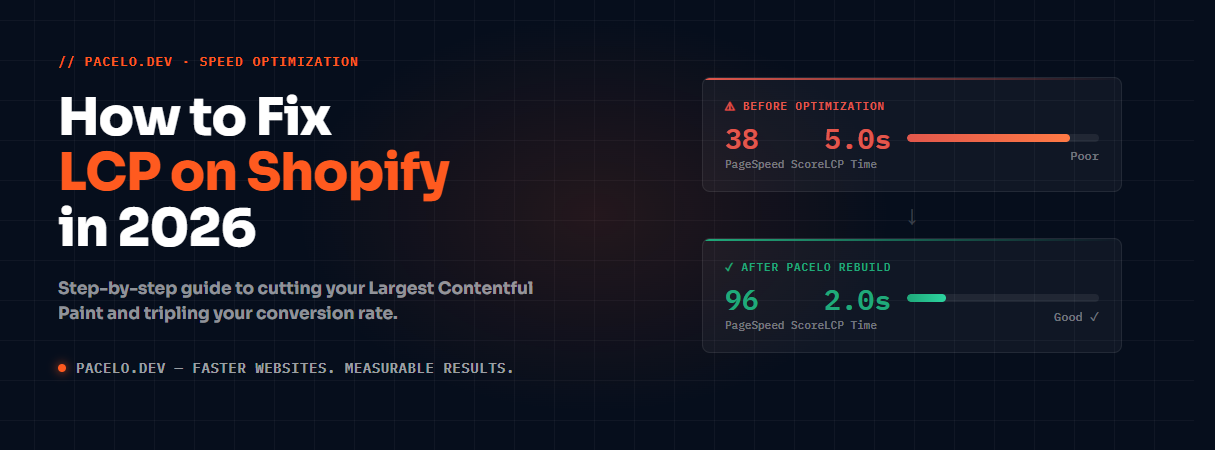
<tr><td>PageSpeed Score (Mobile)</td><td>38</td><td>96</td></tr>
<tr><td>Largest Contentful Paint</td><td>5.0s</td><td>2.0s</td></tr>
<tr><td>Core Web Vitals</td><td>Fail</td><td>Pass</td></tr>
<tr><td>Conversion Rate</td><td>1.0×</td><td>3.1×</td></tr>
</tbody>
</table>
<p>The score improvement from 38 to 96 wasn't magic — it was applying exactly the steps outlined in this guide, systematically, starting with the highest-impact fixes first.</p>
<hr>
<h2>The Order to Fix Things In</h2>
<p>Don't try to fix everything at once. Work through this checklist in order:</p>
<ol>
<li>✅ Compress hero image to WebP, under 100KB</li>
<li>✅ Add preload hint for hero image in theme.liquid</li>
<li>✅ Add fetchpriority="high" and loading="eager" to hero image tag</li>
<li>✅ Remove all unused Shopify apps</li>
<li>✅ Add defer to third-party scripts</li>
<li>✅ Add explicit width/height to all images</li>
<li>✅ Add font-display: swap to custom fonts</li>
<li>✅ Convert all product images to WebP with lazy loading</li>
<li>✅ Remove unused theme sections and their CSS</li>
<li>✅ Retest on PageSpeed Insights after each change</li>
</ol>
<p>Each fix moves your score. Retest after each one so you can see exactly what impact each change had.</p>
<hr>
<h2>Want Us to Get Your Store to 90+?</h2>
<p>If you'd rather have someone who does this every day handle it — I offer a free 15-minute site audit where I pull up your live PageSpeed Insights report and show you exactly which fixes will have the biggest impact on your specific store.</p>
<p>No charge. No obligation. You keep the findings either way.</p>
<p><a href="https://cal.com/arsalanpacelo/15min" target="_blank" rel="noopener"><strong>Book a free PageSpeed audit →</strong></a></p>
<p>Or email: <a href="mailto:arsalan@pacelo.dev">arsalan@pacelo.dev</a></p>
<hr>
<h2>Summary: How to Get 90+ on PageSpeed Insights for Shopify</h2>
<ol>
<li>Compress hero image to WebP under 100KB</li>
<li>Add preload hint and fetchpriority="high" to hero image</li>
<li>Eliminate render-blocking scripts with defer</li>
<li>Remove unused Shopify apps</li>
<li>Fix CLS with explicit image dimensions and font-display: swap</li>
<li>Convert all images to WebP with lazy loading</li>
<li>Reduce unused CSS by removing unused theme sections</li>
<li>Improve TTFB by using Shopify's CDN and minimizing Liquid complexity</li>
</ol>
<p>Start with steps 1–3. Those alone will move most Shopify stores from the 30–40 range into the 60–70 range. Getting to 90+ requires the full list — but it's achievable on any Shopify store with the right approach.</p>
<hr>
<p><em>Arsalan Ahmad is the founder of <a href="https://pacelo.dev" target="_blank" rel="noopener">Pacelo</a> — a performance-first Shopify and WordPress agency. Top Rated Plus on Upwork with a 100% Job Success Score.</em></p>